
How to test a signing workflow before sending a client document
Run a sample PDF through an electronic signature workflow with a two-recipient test script, clear pass conditions and a completed-file check.

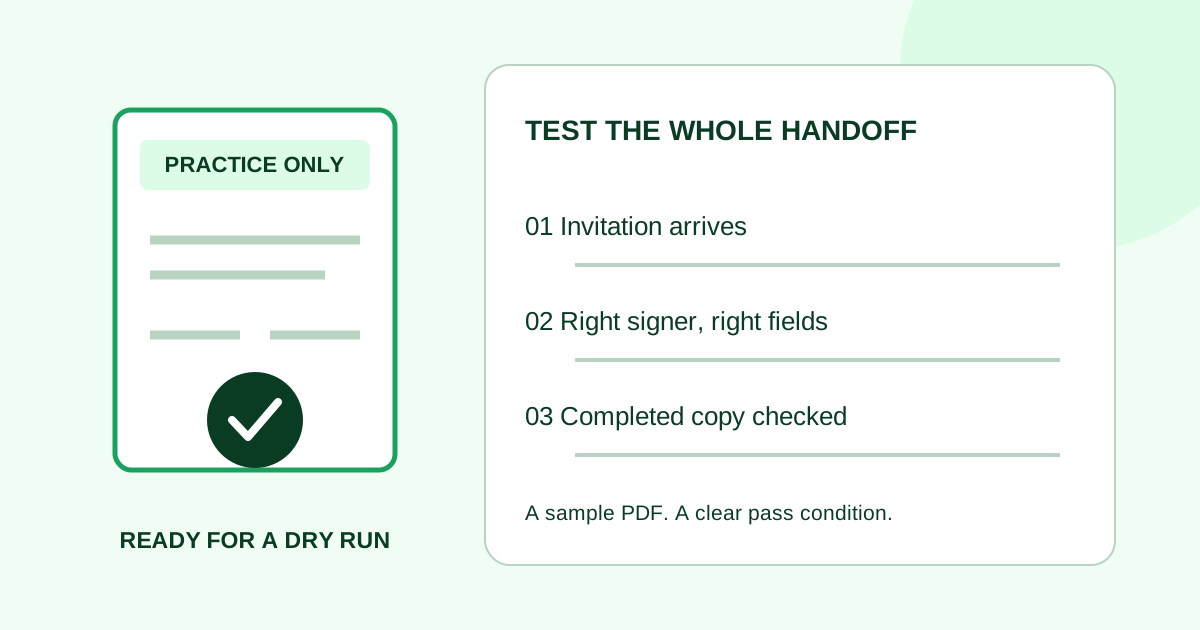
Test an electronic signature workflow with a clearly labeled sample PDF and inboxes controlled by your team before sending a real client document. Follow the request from upload to the completed download, recording whether each recipient gets the right fields and whether the finished copy matches what you sent.
This dry run is for a small agency or service team preparing its first request or changing its sending process. It checks the handoff your client will experience; it does not establish whether a particular agreement is suitable for electronic signing.
Make a sample that cannot be mistaken for client work
Create a new one-page document with the following text, leaving generous space beneath each signature label. Export it as practice-signing-r01.pdf and reopen that saved PDF before uploading it.
PRACTICE ONLY — SIGNING WORKFLOW TEST
Sample project: Internal demonstration 01
Revision: R01
This document contains no client work, payment request or service commitment. Team members are using it to practice the signing steps.
Participant A: name, signature and date
Participant B: name, signature and date
End of practice document — page 1 of 1
Use a new blank document, not a customer contract with names covered by white boxes. Do not include customer addresses, account details, commercial terms or a real client's email. Tell the participating teammates that a practice invitation is coming and confirm which inbox each will use.
This example uses two team members so you can check recipient separation. If your real process needs only one signer, start with one. Check your account's current sending allowance before running tests; do not assume a practice request is excluded from usage.
Decide what a passing test looks like
Write the expected behavior down before sending. The following is an editorial test script, not a promise that every signing service exposes identical controls.
| Check | Action | Pass condition |
|---|---|---|
| Source file | Open the uploaded preview | R01, all labels and the page footer are readable |
| Recipient map | Review each field's owner | A owns A's fields; B owns B's fields |
| Invitation | Open the request in each intended inbox | The practice title is recognizable and the link opens the intended document |
| Signing order | Follow the chosen sequence | The service makes each signer eligible at the expected step |
| Required fields | Leave one required test field empty and try to finish | The service directs the signer to the missing field rather than completing that signer's step |
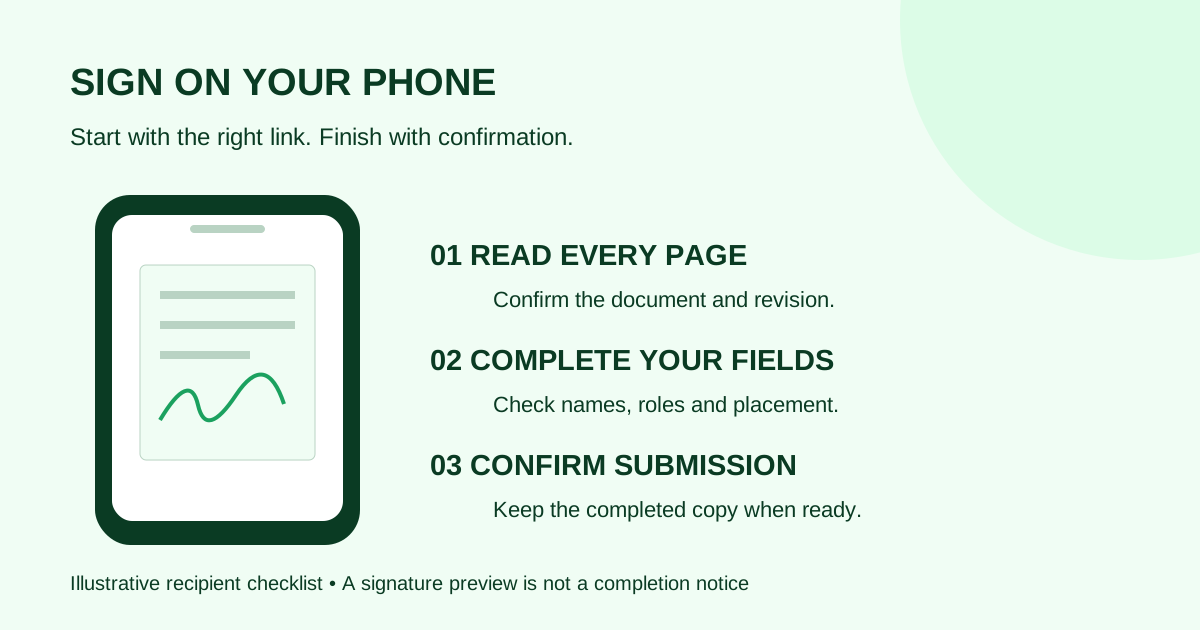
| Recipient experience | Have one teammate use a phone and the other a desktop browser | Each can read the document, reach their fields and finish their own step |
| Completion | Check the sender view after all required signers finish | The request is shown as complete |
| Final record | Download and reopen the completed copy | The sample revision and both expected signatures are present and readable |
Only test the controls you configured. If your service does not offer a required-field setting for a field, record that limitation rather than marking the required-field test passed.
Place fields and check ownership
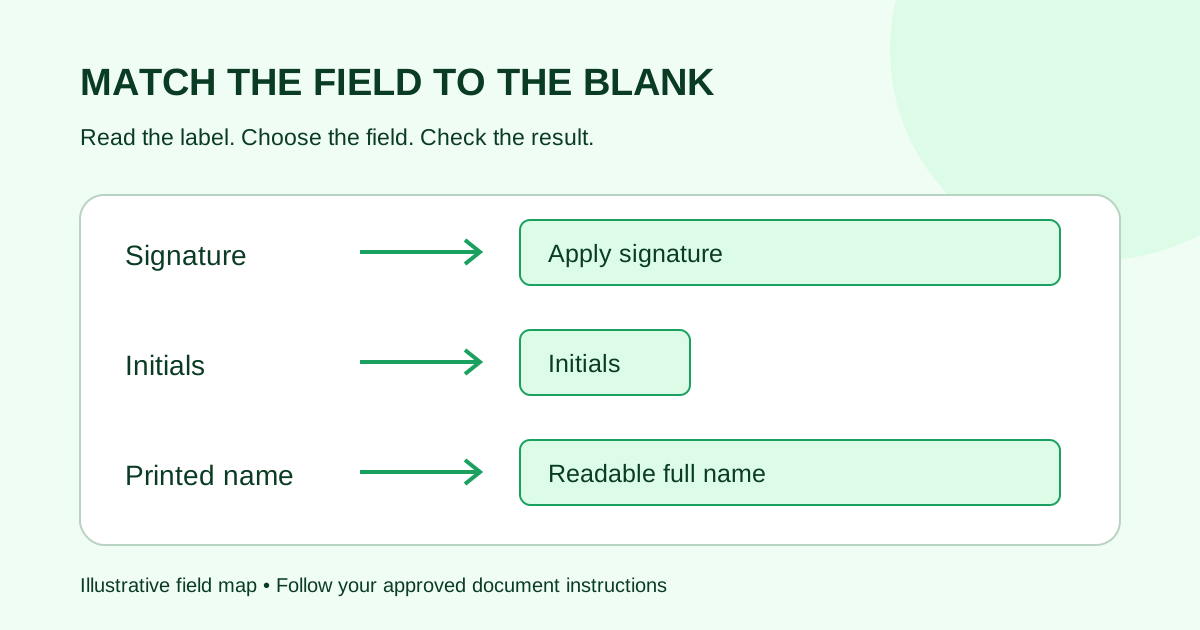
Add the two confirmed recipients and place fields over the corresponding blanks. Compare the setup with a simple recipient field map. A name printed on the page does not assign the adjacent field to that person.
Field ownership and required status are separate checks. For example, Adobe's field preparation instructions describe placing a field for a selected recipient and setting a field as required. Use the equivalent controls available in your service; the labels may differ.
Choose the signing order you intend to use with clients. For an A-then-B test, record when B becomes eligible to sign. Do not judge sequence only by when an email arrives: check what each participant can actually do. For independent signers, use the parallel-signing checklist and confirm each can complete their own step without waiting for the other.
Send once and observe the recipient's view
Use a subject such as “Practice signing test — internal demonstration 01.” In the message, state that it is an internal exercise and identify the teammate who can answer questions. The signature request email examples can help you prepare a recognizable invitation for later client use.
Have each teammate open their own invitation in a separate browser session. Do not forward A's signing link to B to simulate the second recipient. Check the document title and revision, read the page on the chosen device, and complete only the fields assigned to that participant.
For the required-field check, deliberately leave one configured required field blank, try the completion action, then fill it and finish normally. Note the actual prompt. Do not repeatedly press Send or create replacement requests merely because an email takes time to arrive. Check the destination, request status and inbox filtering first.
If a link fails, record the visible error, device, browser and the step that failed. Keep invitation links out of shared notes and screenshots. A useful report says “Participant B could open R01 but could not reach the date field on a phone,” rather than simply “signing failed.”
Check the completed file, not just the notification
Once everyone has finished, open the sender's completed request and download the available final document. Reopen it independently of the signing page. Verify the revision, page count, filled fields and signature placement. Look for text that overlaps a signature or disappears outside a field boundary.
Inspect the completion certificate or audit report if your service provides one. Adobe documents a separate audit-report download, illustrating why you should check the available records rather than assume the PDF download includes everything.
Store the sample separately from client files, with its practice label intact. Use the completed-document filing checklist to confirm a teammate can find the final copy without relying on your inbox.
Record the result and fix the failed step
Use one row per test request:
| Test record | Example to replace with your result |
|---|---|
| Document and request | practice-signing-r01.pdf; request identifier from your service |
| Setup | Two internal participants; A then B |
| Devices | A: desktop browser; B: phone browser |
| Result | Pass, or the exact failed check |
| Correction | For example, move B's date field clear of the page footer |
| Retest | New sample revision and request identifier, with the observed result |
Keep observations separate from guesses. If B did not receive an invitation, that does not by itself prove the address is wrong or the service is unavailable. Check the request before changing it.
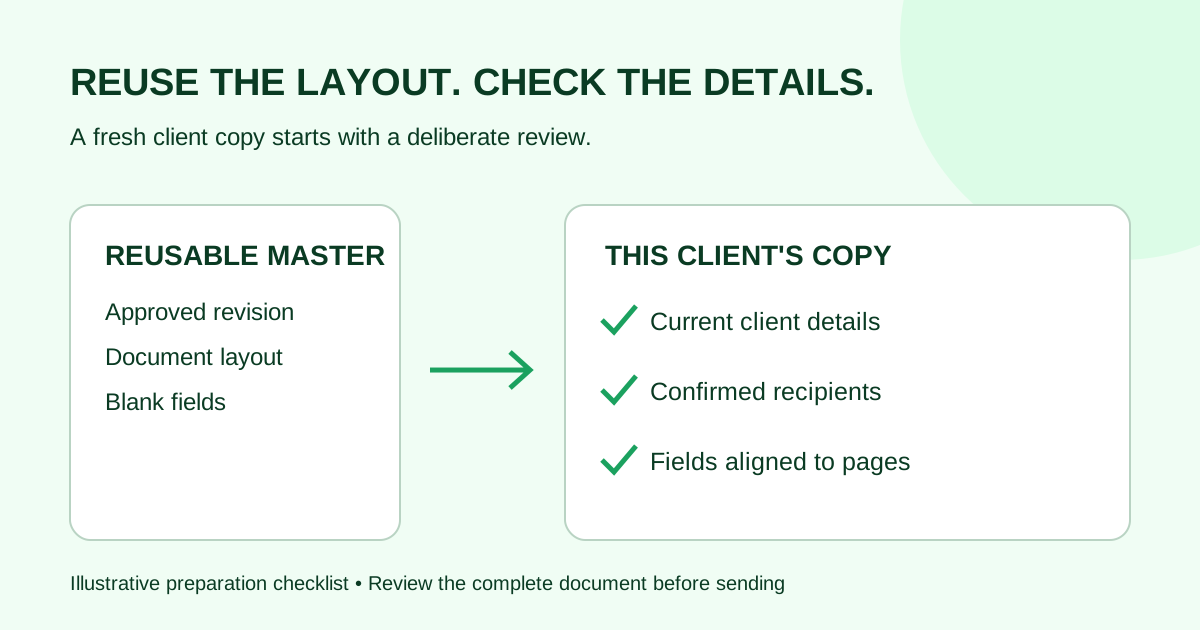
After a correction, repeat the affected step and confirm the final downloaded result. Before the first client send, perform a fresh recipient, document and revision check. A successful practice run does not verify a different client file automatically.
Common questions
Can I send the sample to myself?
A single-recipient test to an inbox you control can check basic delivery and completion. It will not prove that fields and signing order work correctly for two distinct participants. Use consenting teammates and separate controlled inboxes for that test.
Do I need a sandbox or a built-in practice button?
This manual checklist does not depend on either. If you use a normal sending account, the invitation and usage are real even though the document is fictional. Keep recipients internal and check the account's limits before sending.
Can I use this checklist with Demand Signatures?
The live Demand Signatures features page, reviewed October 7, 2026, describes PDF upload, field assignment, sequential and parallel signing, and signing records. The script above is a suggested manual check of your chosen setup, not a claim that Demand Signatures runs automated tests for you.
When your sample is ready, upload the practice PDF — sign-in required — and check its recipients before sending.
Sources reviewed October 7, 2026: Adobe field customization, Adobe audit-report download instructions, and the live Demand Signatures features page. The sample document, pass conditions and test register are original editorial examples.
Comments
Questions and notes from readers. Every comment is reviewed before it appears.
Comments are unavailable right now. Please try again later.
Leave a comment