
How to assign PDF signature fields to the right signer
A two-signer field map and pre-send checklist for assigning signatures, names and dates to the correct PDF recipients.

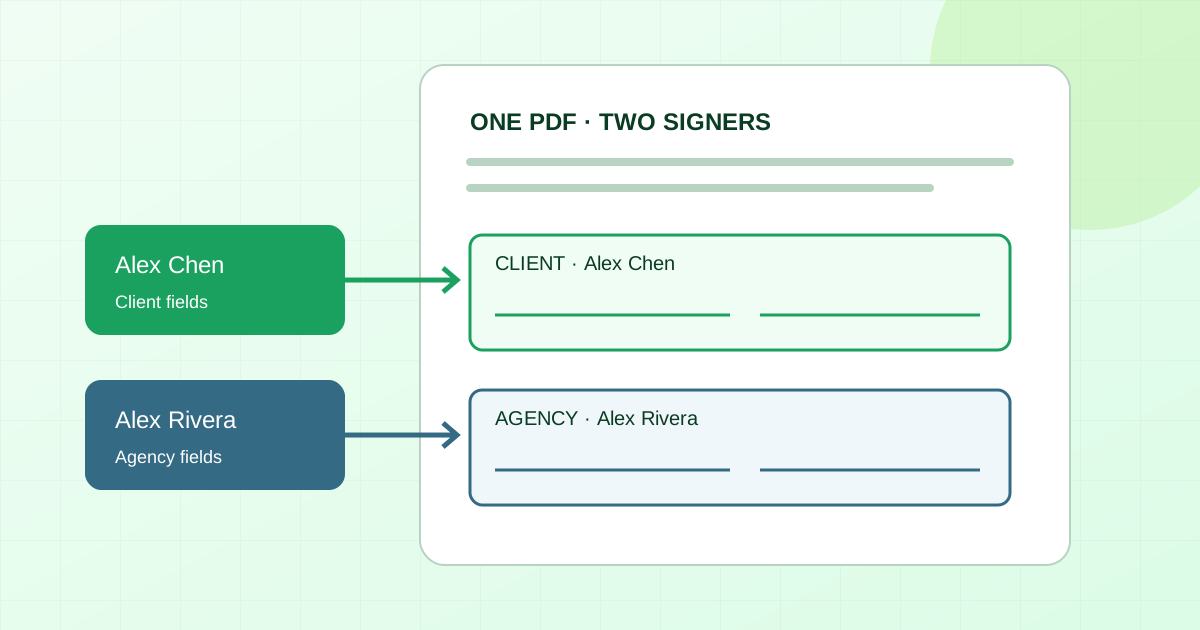
Before sending a PDF to multiple signers, assign every interactive field to the person who should complete it. Check signatures, printed names, dates and any requested text separately. A recipient can be on the invitation list while a field still belongs to someone else.
Use the field map below to prepare a two-signer document, then review the PDF one signer at a time. This is a document-preparation checklist for an already-approved agreement.
Separate field ownership from signing order
Field ownership answers who completes this box. Signing order answers who receives the request first. Decide both, but check them separately.
For example, a client might sign before your agency director. The client's signature field still needs to belong to the client, and the director's signature field to the director. Moving someone to first place in a recipient list is not a substitute for inspecting those assignments.
If the routing decision is unresolved, use our client-first or parallel signing guide before sending.
Make a field map before placing boxes
Imagine an approved four-page service agreement between a fictional agency and its client. Page four has separate client and agency signature blocks. Both representatives happen to be named Alex.
For this example, the approved document calls for a signature, printed name and signing date in each block. The following map turns those six blanks into six explicit assignments. These are fictional addresses, not recipients to contact.
| PDF location | Field | Assigned recipient |
|---|---|---|
| Page 4, client block | Signature | Alex Chen, client — alex.chen@example.com |
| Page 4, client block | Printed name | Alex Chen, client — alex.chen@example.com |
| Page 4, client block | Signing date | Alex Chen, client — alex.chen@example.com |
| Page 4, agency block | Signature | Alex Rivera, agency — alex.rivera@example.org |
| Page 4, agency block | Printed name | Alex Rivera, agency — alex.rivera@example.org |
| Page 4, agency block | Signing date | Alex Rivera, agency — alex.rivera@example.org |
The useful check is the full name, organization and address together. “Alex,” a field color or a position in the sidebar is not enough for this example.
Do not turn every blank on the page into a signer field. An internal reference number may belong to the sender. A fee or service description should already match the approved document. If a blank has no clear owner, resolve it before preparing the request.
Place and inspect fields in five steps
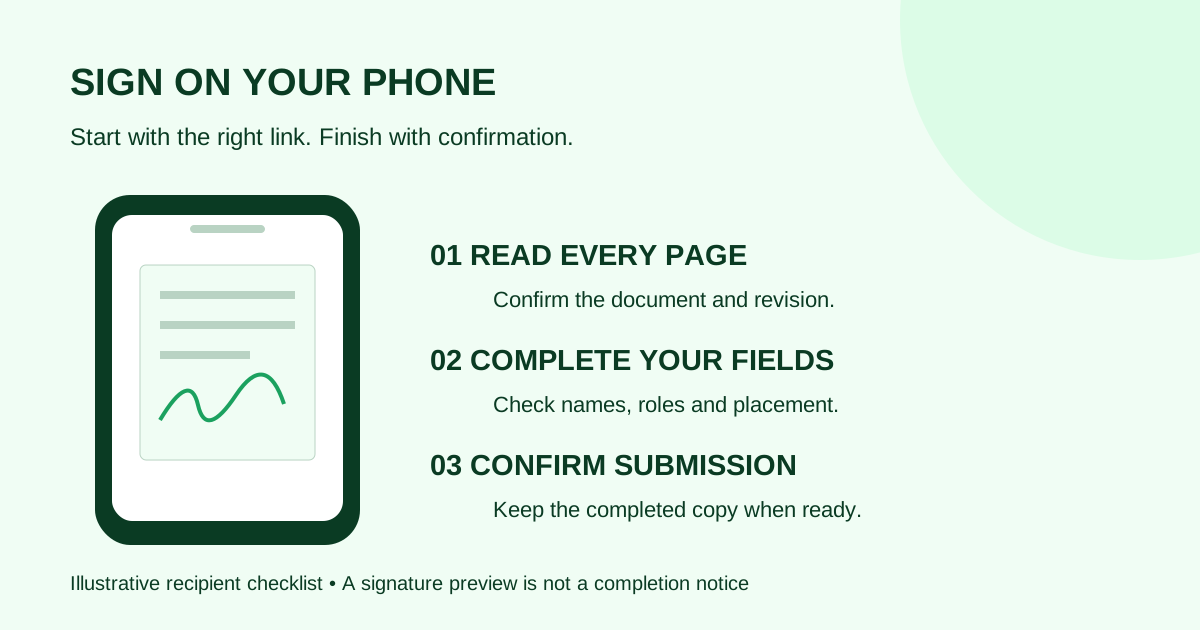
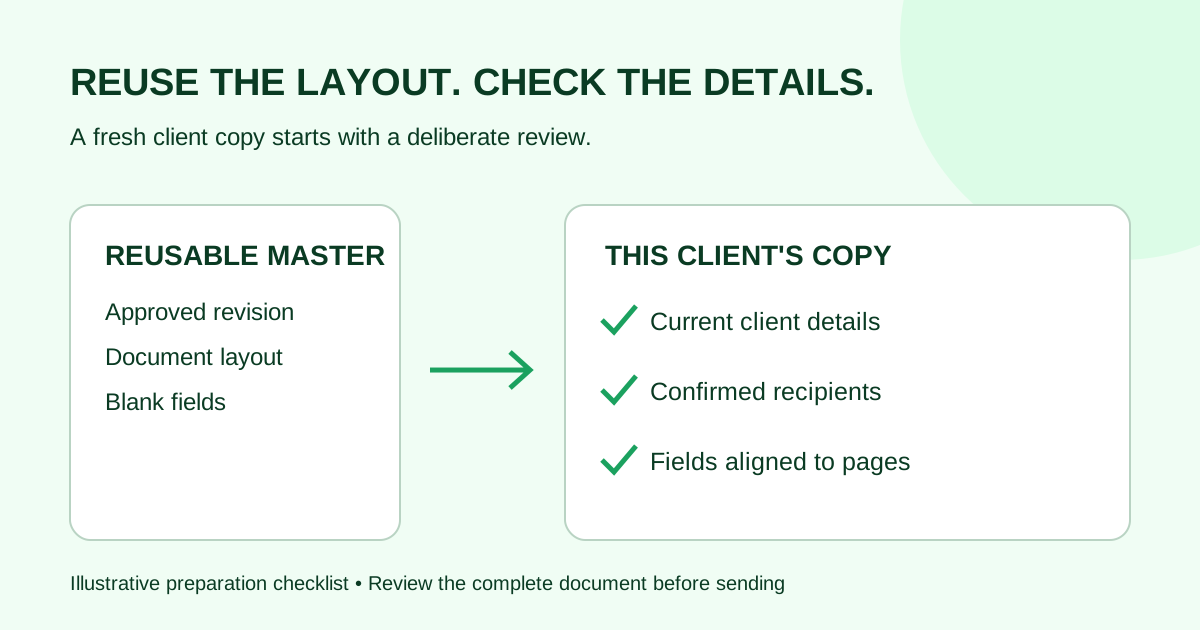
- Open the final PDF. Confirm its revision and page count. Find every signature block, including any approved appendix that contains one. Keep the field map beside the document.
- Confirm the recipients. Check names and addresses against the intended signers. Resolve uncertainty about who should sign with the document owner before sending.
- Work through one signer at a time. Place that person's fields in the correct block, then inspect each assignment. Repeat for the next signer. Adobe's Acrobat field documentation similarly describes placing fields for a selected recipient; exact controls vary by product.
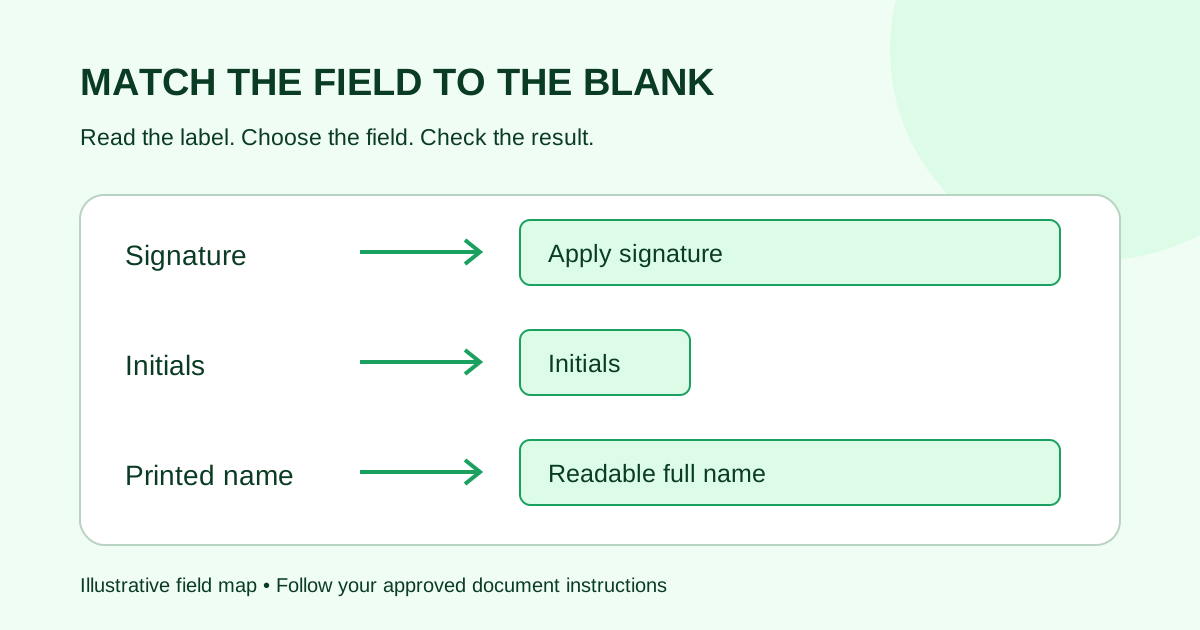
- Match the field to the blank. A printed-name blank, a signature line and a date line serve different purposes. Inspect the field type as well as its owner. Where a tool offers required-field settings, check that they match the approved completion instructions.
- Review placement at a readable size. Make sure fields fit inside the intended space and do not hide names, terms or another field. Recheck placement after any PDF replacement or page-layout change.
A date deserves particular attention. An agreement's stated start date and the date someone signs may be different. Do not replace a fixed date in the approved text with a signer-entered date. If the label is ambiguous, ask the document owner what belongs there.
Run two reviews: by person and by page
First, follow one recipient through the entire PDF. In the example, Alex Chen should have the three client-block fields, and Alex Rivera should have the three agency-block fields. Compare each assignment with the map.
Then inspect each page from top to bottom. This second pass is for misplaced boxes, missed blocks and fields that overlap the printed document. A person-by-person check can confirm ownership while still missing a blank elsewhere on the page.
For a reused layout, use a harmless internal sample when you need to understand how the signing experience behaves. Keep real client documents and addresses out of that practice run.
Common problems to catch before sending
| What you notice | What to check |
|---|---|
| Both signature boxes belong to the client | Inspect the agency box's recipient assignment |
| The right person has a signature box but the wrong name field | Review all fields in the block, not only signatures |
| A signer appears to have nothing to complete | Compare their intended fields with the assignment map |
| Fields sit over the paragraph above the signature block | Check PDF revision, page layout and box placement |
| A date blank has an unclear purpose | Resolve its meaning with the document owner |
If the request has already gone out, first establish its current status and the correction options your signing tool provides. Do not assume an emailed or partly signed request can be edited in place. This checklist is for preparing the next correct request, not a guide to changing a signed agreement.
Prepare the request in Demand Signatures
Demand Signatures' features page describes PDF field placement and assigning fields per recipient, alongside sequential and parallel routing. Use the field map as your preparation checklist and confirm the assignments in your document before sending.
For an agency project, pair this with the statement-of-work handoff checklist to check the approved revision and client handoff too.
Next step: upload your approved PDF to prepare it for signing. Sign-in is required.
Sources checked October 1, 2026: Adobe Acrobat field customization, Adobe's recipient and field preparation guide, and Demand Signatures features. The field map and review procedure are original editorial examples.
Comments
Questions and notes from readers. Every comment is reviewed before it appears.
Comments are unavailable right now. Please try again later.
Leave a comment