
How to sign a PDF on your phone without printing: a recipient checklist
Sign a PDF on iPhone or Android using the right route, with a request-versus-attachment table, a three-page example and completion checks.

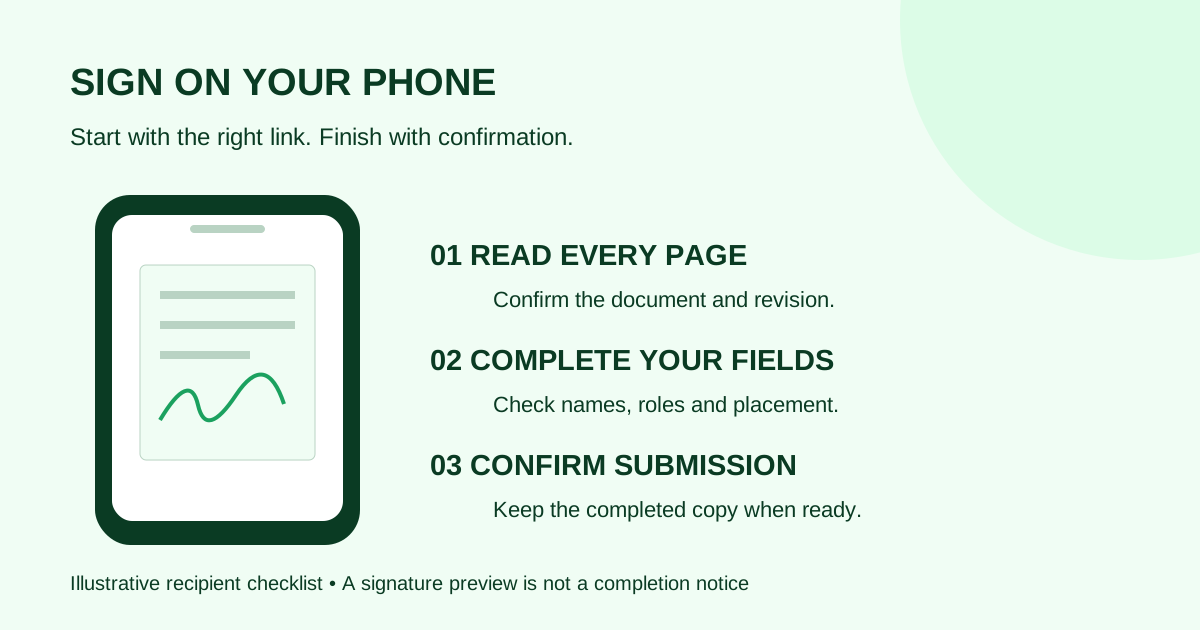
You can sign a PDF on a phone without printing, but first check what the sender gave you: a signing-request link or a PDF attachment. A request link takes you through the sender's signing process. A plain attachment may need a PDF app and an agreed way to return the file. Adding a signature to an attachment does not, by itself, complete a separate online request.
This checklist is for a client receiving an agency agreement, contractor change order or service document on iPhone or Android. It focuses on reading, completing and returning the right version—not on deciding whether you should accept its terms.
Start with the right route
| What arrived | First step | What to confirm at the end |
|---|---|---|
| An email with a review/sign button | Confirm the expected sender and document, then open the request | The service confirms your signing step was submitted |
| A PDF attachment with instructions to sign and return | Confirm how the sender wants it signed and returned | The saved file contains your entries and reaches the agreed destination |
| Both a request link and a PDF copy | Ask which is the active signing route if the instructions are unclear | You completed that route, without sending a competing version |
| An unexpected request or the wrong person's name | Contact the sender using contact details you already trust | The intended recipient and document are confirmed before you continue |
For example, Adobe's Acrobat Sign guide describes signing through an email link in a mobile browser. Its separate Acrobat mobile Fill & Sign guide explains placing text and a signature into a PDF. These are different workflows; follow the one your sender requested.
If you received a signing-request link
- Check the invitation. Match the sender, document title and expected project. If an agency told you to expect “Website SOW revision 3,” a different revision deserves a question before you sign. Do not forward a personal signing link to a colleague to sign in your place; ask the sender to correct the recipient.
- Open it in a usable browser. Start from the invitation. If an email app's built-in viewer makes the page difficult to use, try its option to open in your phone's browser. Follow the service's browser guidance if it still fails. Keep the original invitation so you can return to the same request.
- Read every page before completing fields. Zoom in on scope, amounts, dates and schedules. Rotate the phone if that helps. If text remains blurry, ask for a readable source or use a larger screen; a signature prompt is not a substitute for reading.
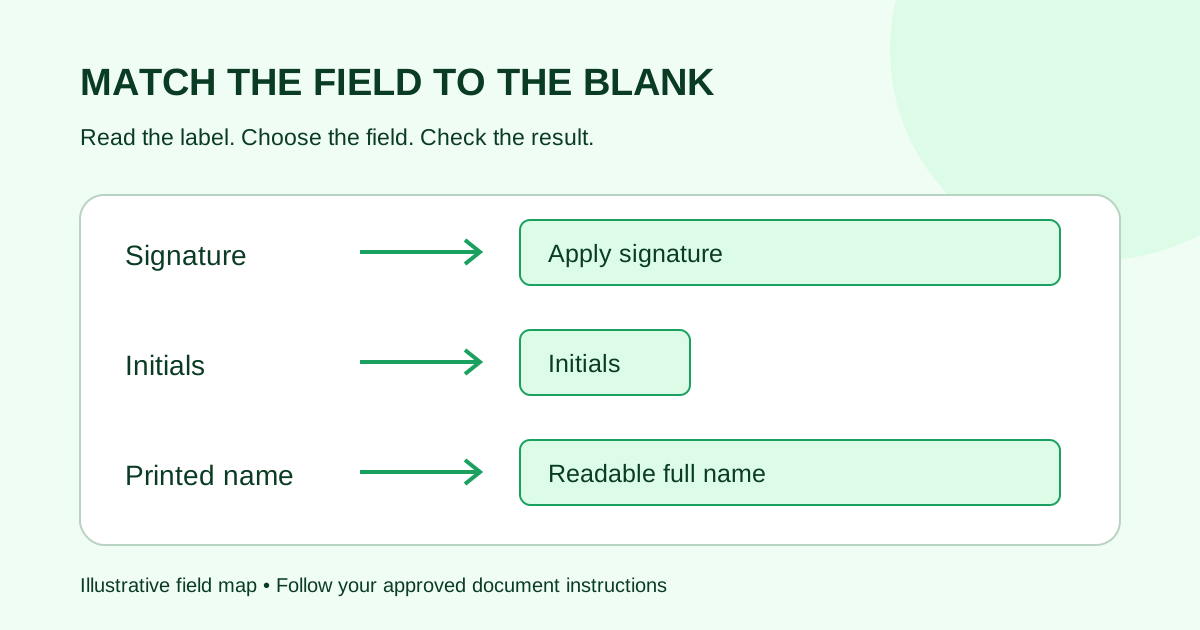
- Complete only your assigned fields. Check that your name and role are correct. Follow the field labels for signature, initials, printed name and date. If the only available signature blank belongs to someone else, stop and ask the sender to check field assignment.
- Review and submit. After adding the signature, look for the service's final action and read what it says. A signature preview alone is not a submission confirmation. Check for missing-field messages and wait for an explicit success state before closing the page.
- Keep the confirmation and completed copy. Your step may finish before another person's. If the document still awaits a countersignature, ask when the final copy will be available. Keep the completed file when provided, rather than relying on a screenshot of your signature.
Do not assume progress survives closing a tab. If you lose the page, return through the original invitation and check its status before entering everything again.
If you received a plain PDF attachment
Confirm that the sender actually wants a signed attachment back. If so, save the PDF somewhere you can find, open it in a PDF app that supports signing, and review the full document before adding entries.
In Adobe Acrobat on mobile, the documented route is to open the PDF and select Fill & Sign. You can add text and place a signature or initials. Adobe says signatures become permanent when saved and the PDF is flattened, so check placement and entries before saving. Those instructions describe Adobe's app, not Demand Signatures or every phone's built-in viewer.
Save the signed version, reopen that saved file, and check the page count and visible entries. Return that exact file through the channel agreed with the sender. A screenshot may omit pages and is not a useful substitute for the requested PDF.
If the attachment is locked or the app cannot place a signature, ask the sender for a suitable file or signing request. Do not try to remove restrictions from someone else's document.
Worked example: a three-page agency SOW
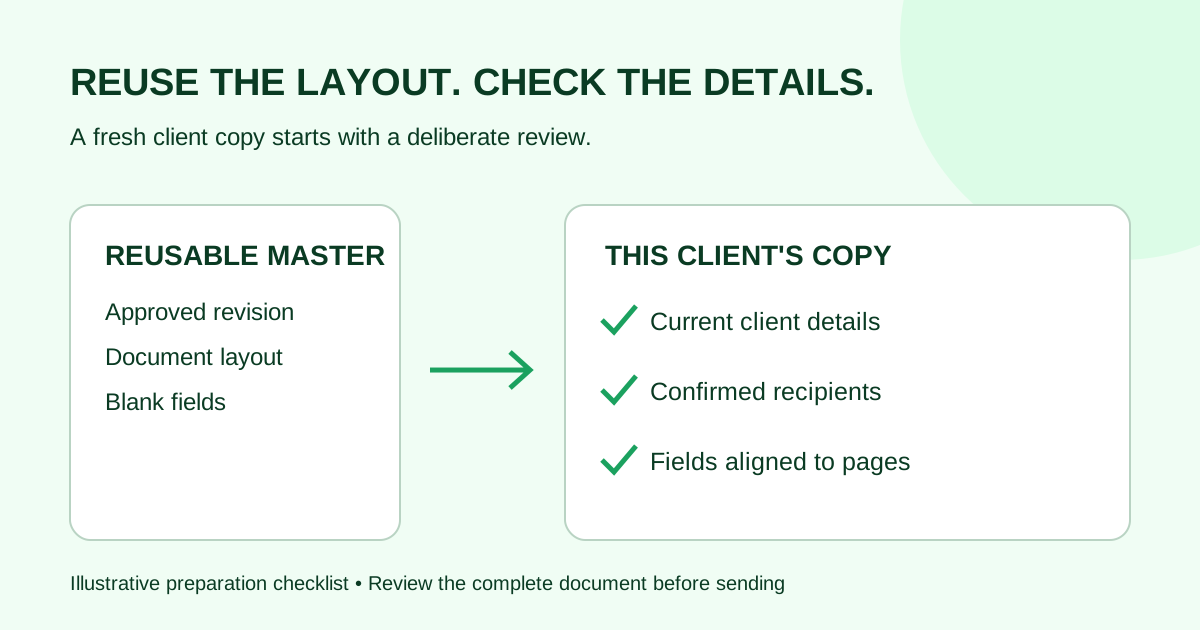
Suppose an agency emails you a signing link for a three-page statement of work. The invitation names revision 3. Page 1 describes the work, page 2 contains the payment schedule, and page 3 has client and agency signature blocks.
| Phone check | What you find | Next action |
|---|---|---|
| Revision | The invitation and document both say revision 3 | Continue to read all three pages |
| Readability | Page 2's table is too small at first | Zoom or rotate; move to a larger screen if still unreadable |
| Field ownership | Client fields are editable; agency fields are reserved for the agency | Complete your client fields only |
| Submission | Your signature appears, but a final submit action remains | Review the entries and complete that action |
| Completion | Your step is confirmed; agency signature is still pending | Keep the confirmation and obtain the final copy after countersigning |
This is an illustrative checklist, not a screenshot of a particular product. The useful distinction is between seeing your signature, submitting your step, and receiving the fully completed document.
When to pause and contact the sender
- The link has expired or no longer opens: request help with that request; do not substitute an edited attachment without agreeing on the change.
- A name, amount or scope item is wrong: explain the mismatch and ask for a reviewed correction before signing.
- You cannot reach a required field: tell the sender the page and field label, along with your phone and browser. Avoid sending the personal signing URL in a public support post.
- You tapped submit but saw no confirmation: reopen the original request or ask the sender to check its status before trying another route.
A useful message is: “I'm reviewing Website SOW revision 3 on my phone. Page 3 shows the agency signature field as required for me. Please check the recipient assignment before I continue.”
Common questions
Do I need to install an app?
It depends on the workflow. Some signing requests open in a browser; a plain PDF may require an app with signing tools. The Demand Signatures features page describes signing on phones and says signers do not need an account. Follow the invitation rather than creating a sender account just to respond.
Can I draw a signature with my finger?
Use the input methods the signing tool offers. Adobe's mobile Fill & Sign instructions include drawing a signature. If your tool offers another method, follow its prompts and review the result before saving or submitting.
Does finishing my part mean everyone has signed?
Not necessarily. A document can still be waiting for another recipient. The sender's signing order determines whether people act in sequence or independently. Check the completion status before filing a copy as final.
What should the sender test before sending to phone users?
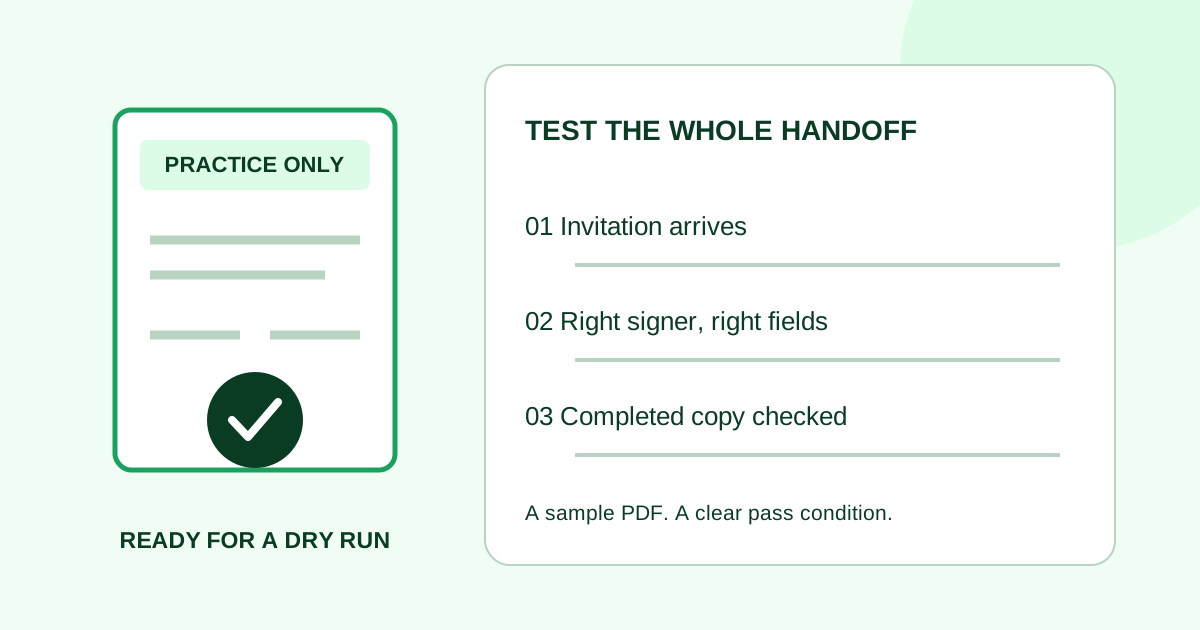
Run a practice signing workflow with a harmless sample. Check mobile readability, field access, the final submission step and completed-copy retrieval. That is more useful than checking only whether a signature can be drawn.
Preparing requests for your own clients? Review Demand Signatures features and use a sample document to test your handoff before sending a real agreement.
Sources and product-page statements checked October 11, 2026. This is a practical document-handling guide, not advice on the terms or legal effect of an agreement.
Comments
Questions and notes from readers. Every comment is reviewed before it appears.
Comments are unavailable right now. Please try again later.
Leave a comment