
How to prepare a scanned PDF for signature
Check scanned PDF readability, saved rotation and page order before requesting signatures, with a practical checklist and a three-page worked example.

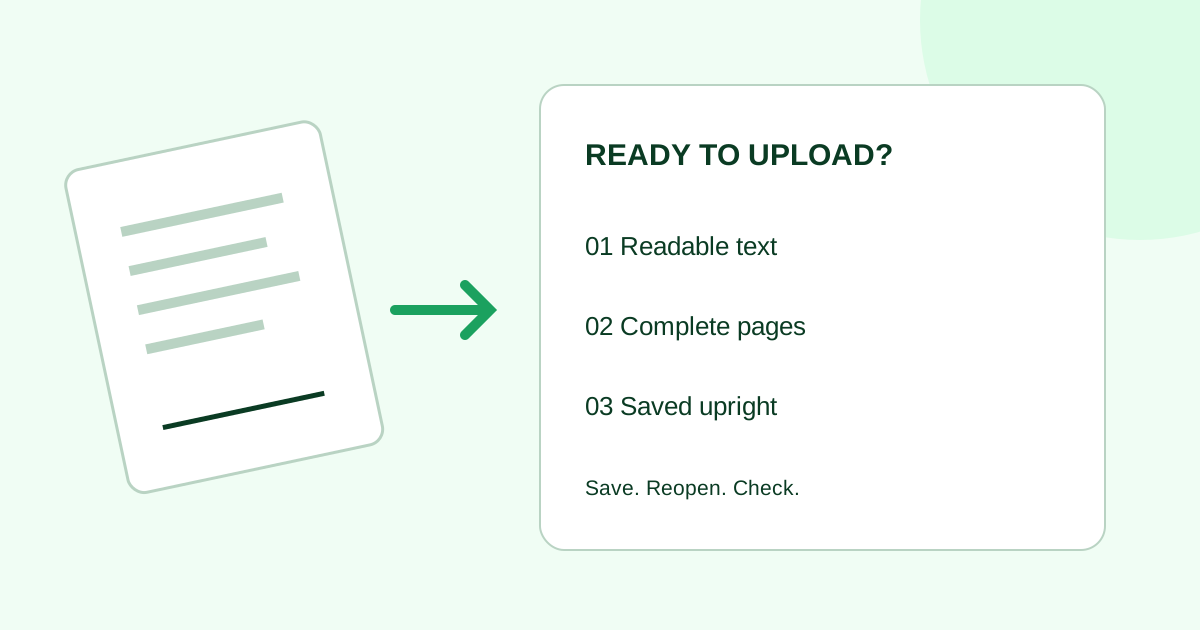
Before sending a scanned PDF for signature, check that every page is complete, readable, correctly ordered and saved upright. Then reopen the saved file and inspect it again before placing signature fields. A signature box cannot repair a blurred amount, a missing page or a cut-off paragraph.
This checklist is for a small-team sender preparing an unsigned scan of an already-approved document. It covers file preparation, not what the agreement should say.
Start with the best available source
If the document owner has the approved digital original, ask for a PDF exported from that version. Confirm that it matches the paper copy you intended to send. Avoid retyping unclear terms from a scan or guessing a missing number.
If paper is the only source, keep the original scan and make a separate working copy. Compare the page count with the paper document, including any attachments that belong in the request. Do not remove a page simply because it looks blank at thumbnail size: check for small notes, reverse-side content or page numbering first.
Use this scan-quality checklist
| What you see | What to do before sending | Ready when |
|---|---|---|
| A whole page is sideways or upside down | Rotate the actual page, save, close and reopen the file | The page opens upright without changing the viewer |
| Text slopes slightly across the page | Use a scan-straightening tool or rescan it flat | Lines are easy to follow and no content is clipped |
| An amount, name or date is blurred | Obtain a clearer source or rescan that page | You can read each character without guessing |
| A shadow or fold hides words | Rescan with the page flat and evenly lit | The full text is visible |
| An edge or footer is missing | Capture the whole page again | Margins, page numbers and all text are present |
| Pages are duplicated or out of order | Compare against the approved source and correct the working copy | The sequence and page count match |
| A smaller file is needed | Check the destination’s current upload requirements before compressing a copy | The new copy remains readable at the smallest text |
These are editorial inspection criteria, not a universal scanner-resolution specification. A sharp page with a complete margin is more useful than a large file whose text is still unreadable.
Save page rotation, not just a rotated view
In Acrobat, Adobe documents All tools → Organize pages, selection of the affected pages, rotation left or right, and saving the PDF. Adobe separately notes that View → Rotate view is temporary: the original orientation returns when the PDF is reopened. See Adobe’s page-rotation instructions.
Whichever editor you use, close the saved file and open it again as a new document. Check the page itself, not just the thumbnail. Finish orientation and page-order changes before placing signature fields, then inspect the upload preview too.
Improve clarity without changing the approved contents
Adobe’s scanned-document enhancement guide describes enhancing scanned pages and optional text recognition. Those are Acrobat features; they are not claims about Demand Signatures.
After any enhancement, compare the result with the source. Pay particular attention to decimal points, minus signs, small print and handwritten notes. If a filter removes faint content or a digit remains ambiguous, obtain a better scan rather than editing the term yourself.
Text recognition is a separate consideration from visual clarity. Do not use a successful text search as your only quality check. The signer still needs to read the document they receive, and any destination-specific file requirements still apply.
Worked example: a three-page service agreement
Imagine a fictional agency has an approved three-page paper agreement. Page two is sideways; a shadow crosses the fee table; page three contains the signature blocks.
- The sender preserves the original scan and checks all three pages against the paper source.
- They rotate page two in the working copy. Rotation fixes its orientation, but the fee remains unclear.
- They rescan page two, check the fee against the approved paper copy and place the clearer page in the correct position.
- They save the prepared PDF under a distinct name, such as
Harbor-service-agreement-r3-prepared.pdf, then close and reopen it. - They confirm the three-page sequence, readable fee table and upright signature page before uploading and assigning fields.
The example separates two problems that need different fixes. Rotation addresses orientation; a clearer source addresses missing visual information. The filename is an original organizational example, not a required format.
Check the uploaded copy before placing fields
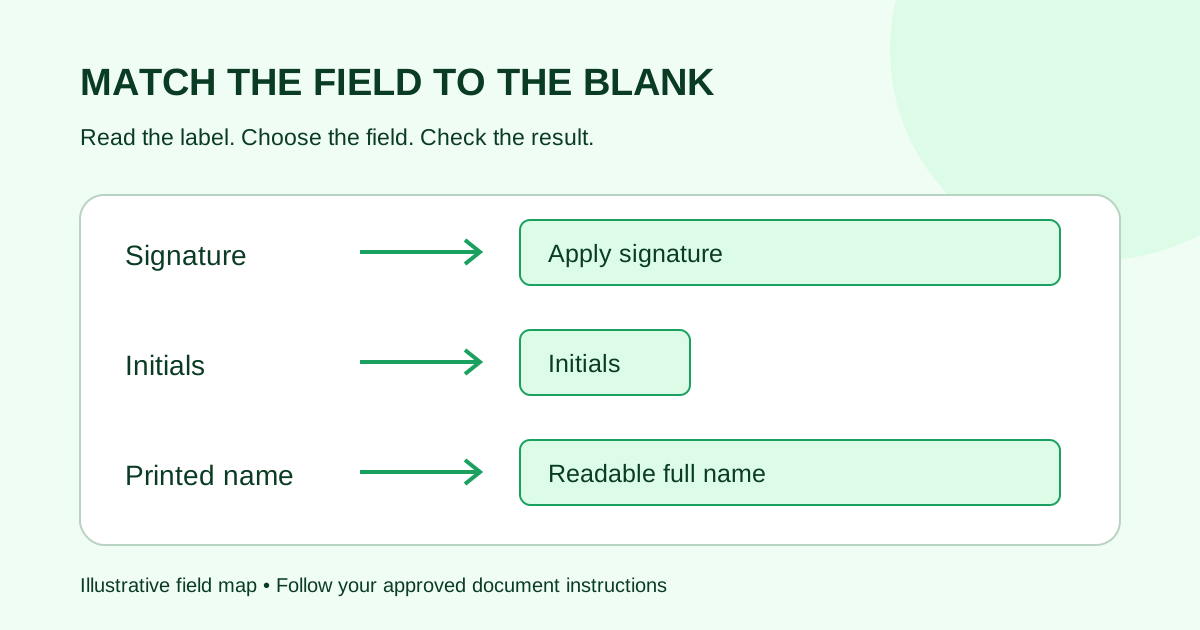
Inspect every uploaded page, especially the smallest print and any replacement page. If the preview differs from your saved PDF, resolve that before sending. Once the pages look right, use the field-assignment guide to map each signature, name and date to the intended recipient.
For the accompanying message, use a signature request email template that names the document and revision. Clear file preparation and clear invitation wording solve different parts of the handoff.
Common questions
Can I fix a scan after placing signature fields?
Prepare the final page layout first. If you replace, rotate or reorder pages later, recheck every field against its intended page and recipient before sending.
Should I crop the scan tightly around the text?
Keep the full document content visible, including notes and footers. Avoid a crop that makes it difficult to tell whether an edge is missing. If the original capture cut off text, cropping cannot restore it.
What if the file is already signed?
Keep the signed file as received. This preparation checklist is for an unsigned source before a new request; do not apply its editing steps to your completed record.
Does a readable scan prove the agreement is ready to sign?
It proves only that the file has passed your readability check. Confirm the approved version, intended recipients and any unresolved document questions separately.
When your unsigned PDF is ready, open the Demand Signatures upload workflow; sign-in is required.
Sources checked October 4, 2026: Adobe’s rotation and scanned-document enhancement guides linked above. The checklist and fictional example are original editorial guidance.
Comments
Questions and notes from readers. Every comment is reviewed before it appears.
Comments are unavailable right now. Please try again later.
Leave a comment