
Send a contractor change order for signature without losing the revision
A change-order checklist for the revised scope, cost and schedule, with an example handoff message and a clear archive naming convention.


A change order needs to remain identifiable after it leaves the office. “The extra work we discussed” is not a useful file name when there are three revisions and two people coordinating the job.
Use this checklist to send an already-approved change-order form for signature. It is workflow guidance, not legal advice or a substitute for project-specific contract, notice, cancellation or approval requirements. Check those requirements before choosing a signing method.
Put the change in one revision
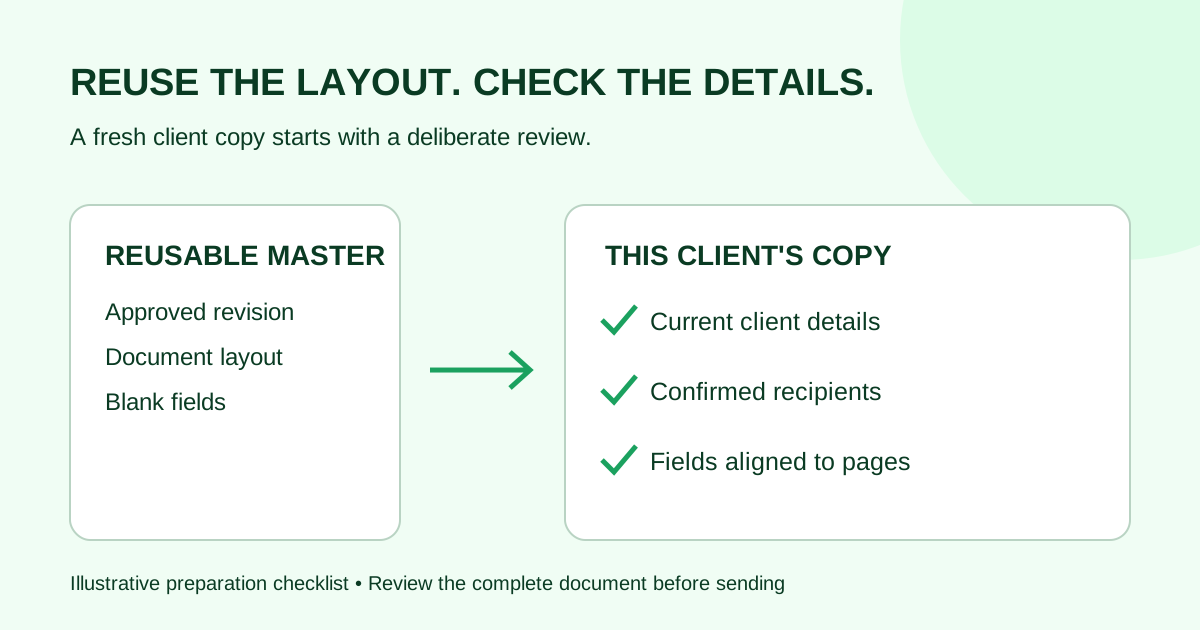
Before uploading, make the document answer four operational questions:
- Which job and original agreement does this change relate to?
- What is being added, removed or replaced?
- What is the price change and the resulting total, where applicable?
- What is the schedule effect, including any decision still outstanding?
Use the form and review process required for your project. If a number is undecided, settle it through that process instead of hiding the uncertainty in a signing request.
For a fictional “Harbor kitchen” job, name the file “Harbor kitchen — CO-004 — revision 2.” Keep earlier revisions in the project archive, clearly distinguished from the version being sent.
Reconcile the PDF against the request
Use a short check sheet before sending. Here is a fictional example for Harbor kitchen CO-004, revision 2; the amounts illustrate document checking, not a recommended price or contract term.
| Item | Approved source for this example | What to check in the signing copy |
|---|---|---|
| Revision | CO-004, revision 2 | The PDF heading, file name and invitation all identify revision 2 |
| Scope | Replace the specified cabinet fronts | The attached scope describes the same work; an earlier finish selection is not carried forward |
| Cost | Original total $18,000; approved change +$1,200 | The change is shown as an addition and the resulting total is $19,200 |
| Schedule | Two additional working days, as recorded in the reviewed form | The request does not repeat the old completion assumption |
| Supporting pages | Revised finish schedule attached to this revision | The exported PDF includes that schedule and its text remains legible |
Check the arithmetic against the approved project record, including other approved changes if there are any. In this simplified example there are no other changes. Do not treat $19,200 as the right total for a job with a different change history.
If the invitation says revision 2 but the PDF says revision 1, stop the handoff and reconcile the files. Renaming an old PDF does not update its contents. If the scope, cost or schedule changes during this check, return the document to the project's review process before requesting signatures.
Confirm the approval path
Identify the people required by the project and confirm their contact details. Do not assume that the person present on site can approve a cost change. If a consultant, owner or other party must act in a particular order, record that order before sending.
Public-project workflows illustrate why one universal sequence would be misleading. SUNY's published change-order signing procedure specifies its own process for contractors and consultants. That is evidence of a particular owner's procedure, not a rule for your private project.
Prepare a readable signing copy
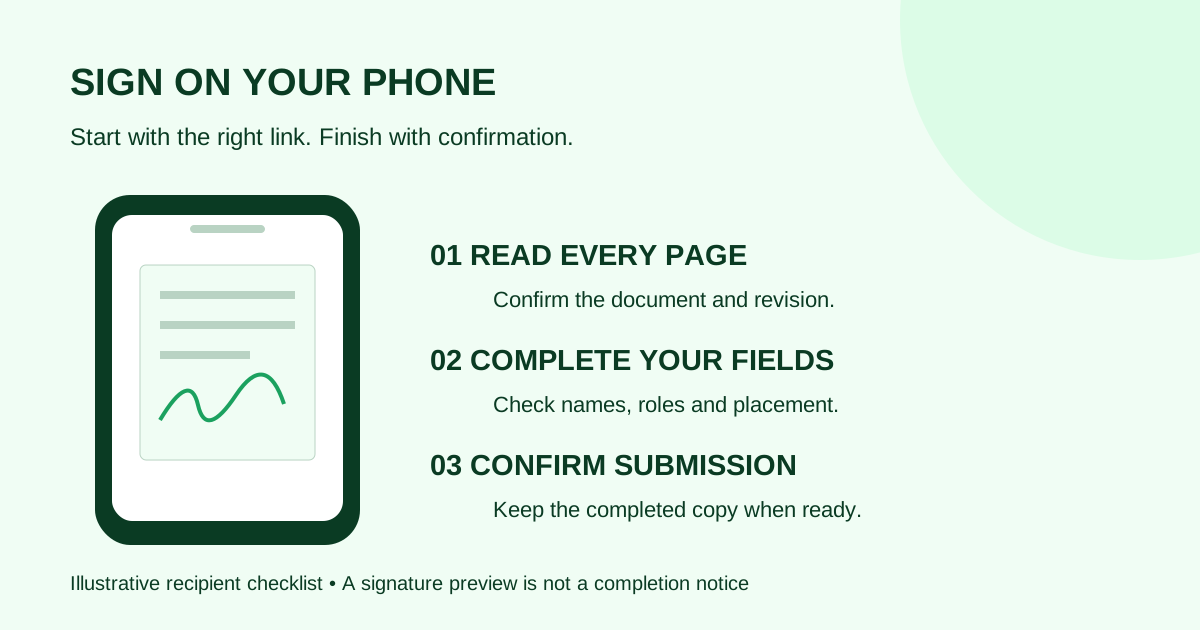
Export the reviewed revision to PDF and inspect every page. Include the approved supporting pages that the signers need to understand the change. Check that small cost tables are readable on a phone and that signature fields will not cover the amount or description.
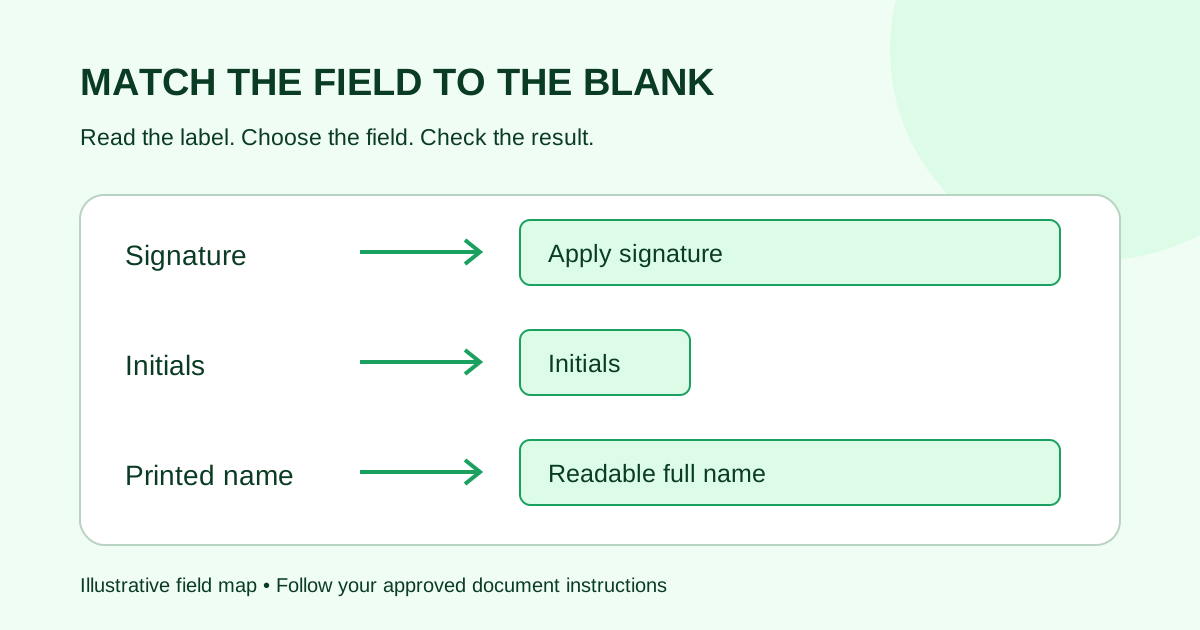
Upload the PDF, enter the signers, assign fields to the right people and select the required signing order. If the process can run in any order, parallel signing may be appropriate. If it depends on one signature preceding another, use sequential signing.
Use the sequential versus parallel signing checklist to translate the confirmed approval path into a recipient order. Resolve the required order with the project owner before setting it in the request.
Do not promise a start date solely because the request was sent. Follow the approval and scheduling process for the job.
Use a revision-specific message
Please review Harbor kitchen CO-004, revision 2. It records the proposed cabinet change and the price and schedule effects shown in the PDF. This replaces the earlier draft. If the document does not match your understanding, contact us before signing.
A clear message lets the recipient identify the request without opening every attachment in a long email chain. It does not replace the document itself.
Use the revised-document example in the signature request email templates when preparing the subject line and handoff. Name CO-004 and revision 2 consistently in the file, request and message; identify the earlier draft explicitly rather than relying on “the latest version.”
If an older draft is still circulating
Identify the old request by its change-order number and revision before sending a replacement. Tell the recipients which version they should review, and use your established process to stop the obsolete request from collecting signatures. Do not assume that uploading a new PDF automatically withdraws an earlier invitation.
If someone has already signed the earlier version, preserve that record and ask the project's contract administrator how to proceed. This checklist does not decide whether a signed change can be replaced or which additional approvals are required.
Archive the completed change
Keep the finished PDF and completion certificate together with the original project records. Record the accepted revision in the job log. If the change affects procurement, scheduling or invoicing, hand the same revision to each responsible person.
Source reviewed 27 September 2026. This checklist does not claim that any product meets a specific owner's approved-system requirements.
Next step: prepare the reviewed change-order PDF in Demand Signatures. Sign in to upload; confirm the project's signing requirements first.
Comments
Questions and notes from readers. Every comment is reviewed before it appears.
Comments are unavailable right now. Please try again later.
Leave a comment